How to Set Up a Programming Computer's Software Environment from Scratch

Before You Begin
The main purpose of this article is to allow me to configure my programming environment more quickly when switching to a new device. It has a bit of a memo feel, and as a result, some explanations may be omitted. I will try to avoid any unclear operations, but if there are any, please remind me in the comments section.
Since I haven’t really used Linux systems and can’t afford a Mac, the current version of this article is limited to Windows. There may be Linux content in the future, but it’s more likely that Android content, especially for early versions of HarmonyOS, will come first, which will be presented as article links.
For computers with rogue software, refer to Practical Advice for Removing Adware
For those who don’t know how to choose installation packages on professional software official websites or GitHub open source pages, refer to Issues Related to Version Selection
For scenarios such as virtual machines, it may not be worth purchasing keys for some Microsoft products, so activation tools are needed. Please refer to Microsoft Activation Related Topics
For slow SOURCEFORGE download speeds, refer to SOURCEFORGE Speed-up Strategies
I. Social Software
New computers must have social software, especially QQ and WeChat in China.
Use the links below to jump to the official websites, click the corresponding download buttons to download the installation packages, open them and use them:
- QQ Windows Version
- WeChat Windows Version
- Download QQ for other platforms from the homepage
- Download WeChat for other platforms from the homepage
II. Browsers
Some computers may come with browsers like 360 by default, or some may only have IE, which greatly affects the user experience. It is recommended to uninstall browsers with poor user experience like 360 and disable old browsers like IE.
Please refer to the browsers already on your personal computer and choose to install the following browsers, listed in order of recommendation from highest to lowest:
- Edge browser, the most recommended and most compatible with Windows
- Chrome browser, note that this link may not work well, and domestic connections to Google may not be perfect with Bing
- Quark browser, considering that Quark Netdisk may be used for file downloads sometimes, pre-installing Quark is wise
- 360 Speed Browser, unlike 360 Secure Browser, it adopts a relatively concise style. Since I haven’t used it for a long time, I’m not sure if installation will introduce ads, so I don’t recommend it for newcomers. There is a minimalist version download link in the upper right corner of the official website, which seems to be a good version
III. Cloud Storage
Some cloud storage services annoying require the use of a client, so we sometimes need to compromise, after all, sometimes resource sharers use various different cloud storage services (I once didn’t want to download any cloud storage, but ended up searching for two hours to find a software and finally found it in a search tool)
You can consider installing corresponding cloud storage based on your computer’s actual capacity and personal situation. These software installations are relatively simple:
IV. Music
Only one music player is recommended: lx-music. The software is open source and free, with no VIP restrictions, and all network resources can be downloaded and used, but the installation steps are a bit cumbersome
Note
This software also has a mobile version, but it seems that it cannot support local music, or the support is not very good
First, open the software’s release page, find the appropriate version, and refer to Issues Related to Version Selection
Download the installation package and install it
At this point, when you open the software, you will find that music cannot be played. This is because the software received a lawyer’s letter from Tencent France, so it dares not provide audio sources and can only make a shell. The real audio sources need to be found by yourself
Enter the settings, find “Custom Source Management”, select Online Import, then find a connectable one from the articles linked below, copy it into the input box, click Import, and check it after confirmation to use it
- Luoxue Music Sources
- Luoxue Music Assistant Music Sources
- Open Source Music Player and Music Source Sharing (Luoxue)
Music download needs to be set separately
Attached is a screenshot of my configured lx
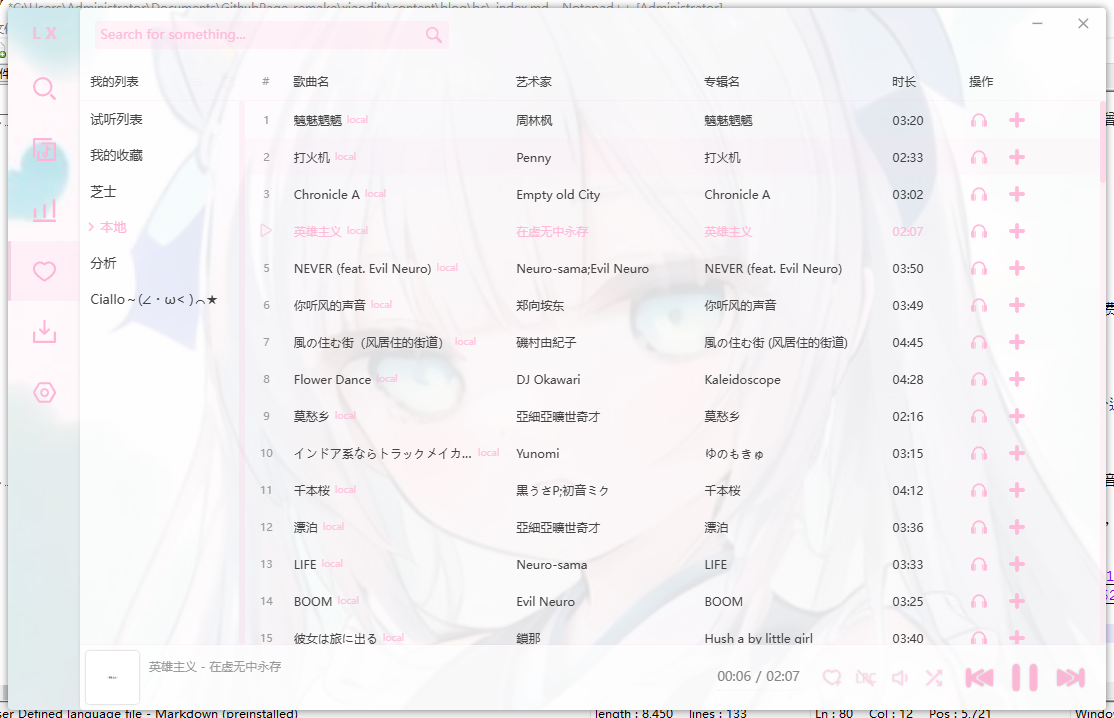
This setting includes playlists that can be downloaded from cloud storage. There is an import option in the settings, so I won’t go into details
V. System Tools
Many Windows functions are very messy, and some problems don’t have good solutions, so we need to introduce some software to manage them. Some people may choose 360 series, but correspondingly, ads will be very泛滥
We need to introduce some safe, ad-free and convenient software:
First, software products from well-known companies that are relatively easy to install in China (I personally like Tencent’s, not for anything else, just because there is a “unlock file occupation”)
Both are very simple, just click download, but the latter opens the Microsoft Store, so the installation steps are very concise, but it won’t create a shortcut by default, you need to find it in the Start menu
The following are some that are not easy to install, I will explain the installation steps in detail
FixWin
First open the download page (it seems to be an article?): FixWin 11 is the best PC Repair software to fix Windows 11/10 problems
After opening, ignore all nonsense, scroll down to find “Download FixWin”, which is generally accompanied by a blue button, click to download a zip file, unzip it and use it
Yasb
This software is an open source software, open source on Github, its purpose is to improve the status bar
You can get the software through the commands in the open source page, of course, you can also download the msi version from the Release option in the right column of the open source page. Note the font issue during software installation, which is explained in the open source page, you need to download the supported fonts first
Here is an installation introduction article, I followed this article when I installed it
ZyperWin++
ZyperWin++ is a Windows optimization tool that can optimize various Windows problems with one click. Similarly, select the appropriate version in Release, then install it. The software operation is very simple, so I won’t explain it in detail
VI. Video Tools
1. JiJiDown
Open the official website, click “JiJiDownCore File List”, select JiJiDownCore-win64.exe
Note
This website does not guarantee security, because I downloaded it two years ago and haven’t cared about it since. At that time, there was no official website, so this can only be doubted (to put it bluntly, I’m too lazy to verify, I’m too lazy to run that installation package, hehe)
2. downkyi
What JiJiDown can’t download, downkyi may be able to. The former provides high-definition image quality, the latter provides the final guarantee (well, that’s how it was two years ago, now I don’t know)
This is the official Release page. In the latest version, click on Assets, then select the zip to download
3. oCam
A powerful screen recording software, most of my videos are recorded with it, but this thing is hard to install when searched in China - either software parks, or can’t be downloaded, or can’t be connected at all (I really don’t know how I managed to get the installation package when I was in elementary school)
Thanks to a blog on CSDN for providing the installation package (although I haven’t personally tested it, it should work). This link is from Quark Netdisk, you see, what did I say in the Browser section, Quark will come in handy
Of course, if you don’t have it, I helped you upload it to Lanzou Cloud. This thing doesn’t require an account or any client: Jump to Lanzou Cloud, password is 7bb4 (this thing can’t cancel the folder password without VIP)
4. OBS-studio
A live streaming software that also has screen recording functions, can do some real-time screen composition work. To download, first open the official website, but I was tricked by a fake official website once, so I’m not very relieved. Here’s the GitHub repository just in case: GitHub (you can find the release yourself)
5. CapCut Professional Edition
Very famous, but VIP is everywhere, not recommended for use. I mainly keep it because I’m used to a few functions. Download is simple, go to official website to find download
6. Bi Jian
Bilibili’s editing tool, very tightly bound to Bilibili
I almost laughed when searching, full screen of CapCut ads, and a fake official website made by Kingsoft Software Manager
Official website link here, click to download
7. MaruToolBox
This thing was recommended by Bilibili at that time, I personally use it very little, but sometimes it’s very practical
Its main function is to compress video and audio together or separate them
Jump to official website download
8. HEVC Video Extension from Device Manufacturer
Strictly speaking, this is not called software, it’s more like a patch (right?). Many official Microsoft software do not support HEVC video format, including but not limited to official players and browsers, so some videos cannot be played, so HEVC video extension is needed
But Microsoft is not ethical, directly charging six yuan, so there is the following trick: HEVC Video Extension from Device Manufacturer
This was originally used by Microsoft for device manufacturers. Device manufacturers have purchased this extension, users do not need to pay again, but can directly enjoy the extension through such a special version. However, Microsoft has a website that I don’t know what it’s for that can download static files, which allows us to directly get the extension files
This is the file link for the version I got
After downloading, double-click to select install. If it doesn’t work, you need to search online, which is no longer within the scope of this article (in human terms, I can’t finish this article)
9. PotPlayer
PotPlayer is an extremely powerful video player, it is basically the most authoritative in the player field, but it’s also hard to find the official website in China: Official website link
10. VLC media Player
A very old video player, the function is also okay, still official website download
11. Mediainfo
This is a very powerful software, can view video file format encoding and other information, display a variety of content are very detailed. If you encounter video damage and other issues, you can first use Mediainfo to get video information and then find AI, the efficiency will be quite high
Still click into official website download link, but it’s relatively difficult to find the right version, you can follow me:
First look at Version, select the column for your system, and finally look to the right to see Architecture, here judge according to your computer system bits, generally computers are 64-bit, if you don’t know, you can learn how to view in the Issues Related to Version Selection section (oh right, if you really don’t know what to choose, choose that Universal installer, that’s a universal option)
After finding the appropriate bit, find the GUI word on the right. If you choose Universal installer, you can directly click the link on the right. If not, you need to click 64 bit only installer, so you can download the installation package
12. ffmpeg
ffmpeg is a very well-known and important software, it deserves to be called the strongest software in the field of audio and video processing. Almost all video platforms and software use its functions, such as Bilibili and Douyin
In daily use, it can provide excellent transcoding operations, and can also handle certain specific audio and video files. It can be used in combination with Mediainfo for video format correction, so when encountering video problems and needing to ask AI or netizens for help, you can provide the condition: I have installed ffmpeg
Its download can be carried out on Github release page, generally select ffmpeg-master-latest-win64-gpl-shared.zip, you can also go to gyan.dev to download, but due to space limitations, I will not introduce the detailed process
13. FFmpegFreeUI
As mentioned earlier, FFmpeg is powerful, but it is a console program that can only be used in the command line. The following software can install a UI for it: FFmpegFreeUI
The software is abbreviated as 3FUI, for detailed installation, please see the open source page introduction (it can be seen that the original author hates beginners very much, probably annoyed by questions)
VII. Technology
Oh, finally into the field, I’ve been waiting for this moment for a long time. There’s really too much to talk about in terms of technology
1. Development Tools
1.1. Make
Make.exe is a well-known build tool for automatic building of software projects, you can see detailed introduction on the official website: Make - GNU Project - Free Software Foundation
It seems very difficult to find the right download page from the official website, here I have already prepared the window version download page: window version download page, click download to get it, of course, do not use this version if you have requirements for new syntax
Since make is a Linux software, all Windows versions are ports. The officially recognized port version currently stays at version 3.81, but the latest version of make is 4.41, so if you want to use the new version, you can only find other ports
Using the winget search make command, you can find a software called ezwinports: make, which is a port version of make, currently the latest version is 4.41
Execute the following command in the command line to install:
winget install --id ezwinports.makeAfter the progress bar finishes, use the make -version command to check
1.2. CMake
Make is an automatic build tool, but its version is very old, sometimes it can’t adapt to the development needs of large software, at this time, CMake can come in handy
CMake is a cross-platform build tool that can automatically generate build files such as Makefile adapted to the system, which can well simplify the compilation and installation process
To install CMake, you can go through the official website: CMake - Upgrade Your Software Build System
On the official website, click download, scroll down to see the window software version list, usually, we choose Windows x64 Installer, click the link on the right to download
1.3. Git
Git is an essential tool in the open source field and a necessary software in work for version control
Installation is simple, but there are many options and they are all in English, which is easy for beginners to get confused. So here I will post an article, I followed this one when I first installed Git: Git Detailed Installation Tutorial (Detailed Explanation of Each Step in the Git Installation Process)_git installation-CSDN Blog
I also made a configuration guide generation website: Git Installation Configuration Guide - Interactive Configuration Tool, you can refer to it for installation
1.4. Vim
vim is a powerful text editor, but it has mixed reviews. People who like it like it very much and refuse to switch to any other editor, while those who don’t like it strongly reject it (of course, I’m in the middle)
Most of Vim’s functions are completed by the keyboard, which is said to improve efficiency (although I only feel some convenience during Git operations). It is a terminal software, that is, it runs on the command line, so it is recommended to install a Terminal
Official website installation interface: download : vim online
But Windows installation seems to be better downloaded from GitHub: Releases · vim/vim-win32-installer
Regarding vim configuration, I may write a separate article to introduce it later, it’s a bit complicated, so I won’t expand on it here
1.5. VScode
VScode is a very famous editor, lightweight and extensible, it is my favorite editor at this stage, bar none
Download directly from the official website: Visual Studio Code - The open source AI code editor, just click the download button in the middle
You can also go to the online version of VSc: Visual Studio Code
1.6. Visual Studio
Visual Studio is a very powerful programming software, providing IDE, compiler and other contents, the software package is relatively large, and the performance requirements are also relatively high
The official website provides a free community version, paid versions are not meaningful for individual developers, so just download the community version: Visual Studio: IDE and Code Editor for Software Development
Software installation is not directly running the installation package, the official website downloads a dedicated downloader, this is because VS supports many languages, full installation can reach about 100GB, not all computers can handle it, so the selection and installation will be carried out on the dedicated downloader. Therefore, after downloading and installing the installation package, you need to enter the second step of installation, which I will not elaborate here, you can search for relevant tutorials online
1.7. VMware
VMware is a virtual machine software used in virus testing and other fields
This software is paid, you need to purchase a key by yourself, of course, you can also find a free key
Official website link: VMware by Broadcom - Cloud Computing for the Enterprise, I forgot the specific installation process, please find it yourself
1.8. Visual Box
Visual box is similar to VMware, it is also a virtual machine, but it is open source, so no payment is required
You can download and install it from the official website, no further details: Oracle VirtualBox
1.9. MarkText
MarkText is a markdown editing tool, generally used for writing readme (but it is relatively inferior in handling html code and other content)
This software seems to have not been updated for a long time, but markdown syntax has not changed much, so it can still be used as usual
Software open source on GitHub: marktext/marktext: 📝A simple and elegant markdown editor, available for Linux, macOS and Windows.
marktext seems to have no official Chinese version, so here is a Chinese version: Home | MarkText Chinese Special Edition/Chinese Version. I don’t know how it is, I haven’t used it. Readers who have used it can feedback in the comments
Note
I seem to have used the original software but installed a Chinese plugin, it’s a bit long ago and I can’t remember and I’m too lazy to verify
1.10. Notepad++
Notepad++ is an editor, relatively lightweight, sometimes it’s very convenient to use when the workload is small, I usually use it to modify configuration files
GitHub: notepad-plus-plus/notepad-plus-plus: Notepad++ official repository
I also saw a Chinese website, whether it is a safe download method is questionable: Notepad++ download - Notepad++
I don’t know if this software has Chinese, I remember I downloaded it directly from a certain software park at that time
1.11. Terminal
Terminal is a tool developed by Microsoft that integrates cmd and powershell by default, which is equivalent to a beautification software and also provides many modern functions. You can integrate various terminals together through it, such as Git bash and Ubuntu terminal
Installation is very simple, directly from the Microsoft Store: Windows Terminal| Microsoft Store
1.12. Inno Setup
Inno Setup is a simple tool for making software installation packages, with high language freedom (although I generally solve it directly with GUI wizard)
Official website installation package download: Inno Setup Downloads
After opening, turn to the Current Release section, there should be a blue strip with filename or something, select a download node in the download sites on the right (any one is fine, some are fast and some are slow, but these two nodes are no different in China)

After downloading, you will find that there is no Chinese option when installing the software, which means you need to face the English interface for development, which is torture if your English is not good. However, the problem is not big, simplified Chinese just doesn’t have an official translation, but the official also provides unofficial translation versions on the official website, just because the quality is unknown and not included by default, need to be installed separately manually
Official translation page: Inno Setup Translations
After opening, scroll down to the Unofficial translations section, find Chinese (Simplified) in the leftmost column, then click the link corresponding to the third column (download). Sometimes the network is not very good, it will show Request:An error occurred while sending the request., here is an alternative link: Download 5.6.0+
Copy the file content to Default.isl in the installation directory
Note
I seem to have used another version of the translation, I don’t know where I got it from, it seems like a certain download park… I put my default.isl in the link below: Another version
2. Game Development
I don’t know much about game development tools, only a few. I studied game development in the early years, but now I’ve abandoned it all
Here I only give GM and Godot, these two relatively lightweight game engines, others are not discussed for the time being (I should never learn to use that kind of complex stuff in my life)
2.1. GameMaker
GameMaker has now transformed into a free software, you can directly download it from steam, steam installation refers to this article: XI.1.steam
You can also download it from the official website Make 2D Games With GameMaker | Free Video Game Maker
2.2. Godot
Godot is a simple game engine to use. Compared to GameMaker, I actually prefer Godot. Here is the official website link:
Godot Engine - Free and Open Source 2D and 3D Game Engine
3. Software Reverse Engineering and Debugging
Reverse software debugging software is like a figurine to me, it’s always on the computer but I actually never use it, mainly for decoration, after all, I can’t even write hello world in assembly
Of course, there are a few resource reverse engineering software that I still use, such as unpacking galgame
3.1. x64dbg
x64dbg is a very powerful reverse debugging software, official website: x64dbg
Just download directly, it’s quite simple
3.2. ollydbg
ollydbg is a very old debugging software, official website download: Download, just flip to the bottom
3.3. Resource Hacker
This is a resource editor for Windows programs (seems to be exclusive?), which can add, delete, modify, and check the content of resource files and compile new versions (if you have studied WIN32, you will know that this is an rc modifier, but it modifies the compiled and linked rc)
Found a webpage, don’t know if it’s the official website: Resource Hacker
I forgot where to get the Chinese version, it seems like I got it from a download site…
3.4. GARbro
galgame expert, Yuzu-soft Senren Banka GARbro is a visual novel resource file browser, open source at Releases · morkt/GARbro, can unpack most galgames developed with game engines
3.5. Cheat Engine
Cheat engine is a reverse engineering software (right?), mainly used for game cheating
Official website: Cheat Engine
Important
The official version will bundle a rogue software, you need to pay attention not to check the corresponding options during installation. If you don’t have confidence in yourself, you can find a clean version online (of course, this may also lead to downloading viruses..), or refer to the following tutorial for installation👇
I’m too lazy to write the Chinese version, refer to this article: Cheat Engine Installation & Chinese Tutorial - Bilibili
4. Language Environment
The following is the installation and configuration of programming environment
Python
Python is the most challenging software I’ve ever seen for beginners, but it seems that it was originally designed for advanced developers to simplify development processes, and it’s more appropriate to treat it as something like a shell
Official website: Welcome to Python.org
After opening, select download, select a version from Active Python releases and click download, you can also scroll down a bit to download an older version, it’s up to you. The new version has fewer bugs, but the latest version is not necessarily
Python seems to have launched something called
install manager, but I don’t know what that is, it seems to be a version manager used to unify different Python interpreter versions, but I don’t need it because I only have one version and never update it
Dev-C++
Dev installation is very simple, download and install in one step, suitable for C++ beginners
Dev-C++ download | SourceForge.net
MSY32
MSYS2 is a collection of compilation tools, commonly used for C/C++
Official website: MSYS2, after opening, scroll down to Installation and select the appropriate version
Note that the installation path cannot use Chinese
The remaining steps such as installing MingGW need to be searched according to your own needs
5. Other Software
5.1. Bz
Bz is an open source binary editor, but not very famous (although its usage range is not very wide), it can directly edit the binary content of many files. This seems to be a very ancient software, and I can’t find the official website. You can download it from the cloud storage version I uploaded
5.2. wireshark
Network packet capture tool, official website: Wireshark • Go Deep | Download
Find Download Wireshark on the official website, you can select the version on the right
VIII. Office Software
Some office software is still very important. Even programmers sometimes need to process files such as Word, PDF, Excel. Without office software, it’s impossible
1. WPS
WPS belongs to the kind of free and acceptable office software. Although it will tamper with image viewers, may have some ads, and the membership is annoying, as a free software, it already has very complete functions
Official website: WPS-Support for multi-person online collaborative editing of Word, Excel and PPT documents_WPS official website
2. Microsoft Office
Microsoft’s office is a very excellent set of software, but it is paid software. If you don’t want to use piracy or activation tools, you can only purchase it from the official website, and the price is not very cheap
Official website: Microsoft 365 - Subscription for Productivity Apps | Microsoft 365
Click View plans and pricing on the official website to see the prices of each version, purchase and install according to the instructions. It is recommended to purchase the professional version
If you don’t want to spend money (for whatever reason), you need to adopt another installation method, which will be discussed in the Office Tool Plus section
3. AcrobatProPortable
I won’t talk about this for now, I forgot how to install it (note from 2026/1/2)
IX. USB/Disk/Mobile Hard Disk Tools
I’m too lazy to write, just list the names here
- ChipGenius
- DiskGenius
- MyDiskTest
- 白眼
- 磁盘毁尸灭迹
- 芯片无忧
X. Desktop Pets
You can download a Virtual Desktop Pet Simulator on Steam
There’s [BongoCat](C:\Program Files\BongoCat) on GitHub but it’s a bit different from desktop pets, this is mainly used for keyboard key display. I also made a similar software: KeyBonk
There’s also Neuro’s desktop pet, which requires a Java environment. The corresponding JAVA virtual machine installation package is put in the folder. If not, install it yourself
XI. Game Environment
1. Steam
First download steam, go to steam download page, find the download button, download and install
Note
The specific installation tutorial is not repeated, you can refer to the teaching I published on Bilibili
For network acceleration, directly download Watt tools from the Microsoft App Store, or you can download the exe version from the official website, for details, please see my video on Bilibili
2. PCL2
Go to PCL2’s official website to download PCL2 files. Note that no donation is required, the download link is on the left side of the donation option
3. Epic
Download Epic (to claim free games OvO), open official website to download and install
XII. Acceleration Tools
1. Watt Toolkit
Watt Toolkit was originally named steam++, used for accelerating domestic unstable platforms such as Steam and Github, and also has functions such as card hanging and Steam AFK
Official website: Watt Toolkit (Steam++ Official Website) - Watt Toolkit
Click to download the Windows version, click accept and download in the pop-up agreement, choose to download according to personal situation, recommended Microsoft Store or Lanzou Cloud. Note that programs installed from Microsoft Store generally do not create desktop shortcuts
2. Xiao Hei He Accelerator
This is a steam accelerator, more specialized than Watt Toolkit, focusing on game acceleration, not only accelerating the Steam store, but also having specialized acceleration for many online games
But this thing seems to be charged? I’m not very clear, I generally play single-player games so I haven’t used it
Official website: Xiao Hei He Accelerator - Global Dedicated Line Acceleration, Game Network Expert
XIII. Other Tools
1. Everything
Windows file search has always been criticized because it’s too slow, so Everything was born Official website: Download | Everything
Generally, directly select 64-bit installer, you can select other versions if you have other needs, there are also old versions further down
2. NetEase Youdao Translation
Youdao is a very useful software, set the word capture to double-click Ctrl and then you can call it up when you don’t understand English content. I personally think this function is more practical
Official website: Youdao Translation Desktop Version_Official Download
Of course, if you just look up words and don’t use it very often, the web version is enough: NetEase Youdao
3. ToDesk
Sometimes you may not be near the computer but need to use it, this is where ToDesk comes in. This is a remote control software, there are also similar Sunflower Remote, but I personally prefer ToDesk
Official website: ToDesk Remote Desktop Software - Free, Safe and Smooth Remote Connection to Computers and Mobile Phones
After installing the mobile version from the app store on your phone, you can control the computer (of course, you need to bind or something, I forgot, I turned off the security verification a long time ago)
4. 7-zip
7-zip is a very authoritative software, can compress and decompress various compressed packages, and can even open PE structure to see the resource files of applications, which is a very powerful software
Official website: 7-Zip
Just click the top download, if you want to see a more detailed download list, go to: Download
5. Project Graph
This is an open source mind mapping software that I personally feel is very good, used for drawing mind maps, attached GitHub link
XIV. Activation Tools and Deployment Tools
1. Office Tool Plus
Office Tool Plus is an office deployment tool that can save some complicated steps in the Office installation process
The official tutorial of the software is on this website: yerong’s small nest
The above website has been around for a long time, I used to operate according to this, but now it seems to have introduced a more beautiful website (but some content seems to be incomplete): Office Tool Plus
Note
This website is actually better looking than mine,可恶 (actually, I originally planned to use that template, but it was too troublesome, so I gave up)
Beginner tutorial: [Beginner Must Read] Office Tool Plus Introduction Tutorial - Yerong’s Small Nest
About download: Download | Office Tool Plus
About deployment: First Installation | Office Tool Plus
2. HEU KMS Activator
This is an activation tool, whose main function is to activate Windows and Office without product keys, released on GitHub but not open source
Download: Releases · zbezj/HEU_KMS_Activator
The software should be reported as a virus as soon as it is downloaded, you need to firmly choose to keep it to successfully download. At this time, close all antivirus software, or add its download path to the antivirus software whitelist, run it, and the prompts in the software are enough to help you activate
Related Discussions on Common Issues
Practical Advice for Removing Adware
For people without computer foundation, dealing with software like 360 may be helpless. At this time, you can fight poison with poison. Using 360 Software Manager can directly bring up the uninstall programs of various software with one click. During the uninstallation process, you need to be careful not to click on misleading options. Generally, look for “continue uninstall”, “determined uninstall”, these words will not be very prominent, and may even be presented as small words hidden in a corner of the window
The uninstallation logic of 360 Software Manager is the same as that of Microsoft’s program management tool, which is to find the uninstall program of the program, usually uninstall.exe
In addition, the Tencent PC Manager mentioned in the article comes with software management, which can be directly understood as the non-rogue version of 360
I also found a software that seems to be for uninstallation, but I didn’t look at it carefully, interested parties can experience it by themselves: GeekUninstall
Microsoft Activation Related Topics
Haven’t written yet, remind me if I forget
Issues Related to Version Selection
For open source software on GitHub, installation packages are mostly placed in Release. Large projects often have different versions to correspond to different versions of the system
When installing software for Windows systems, you should look for files with windows and win words, or directly look for exe and msi files; for Windows 11, just select x64, for other systems, it is recommended to go to (there may be differences here, this article refers to win10) Desktop -> Right-click This Computer -> Properties -> Device Specifications -> System Type to check the system type, usually 64-bit (x64), 32-bit (x86) and ARM64
Sometimes, the installer will be mixed with various contents, making it difficult to identify, we can look for install words
SOURCEFORGE Speed-up Strategies
Some long-established open source software will be open source to sourceforg, this platform provides download services, you can click download on the corresponding software’s download page to download, but this website sometimes has slow speed (at least I used to be like this), because the website only considered geographical distance when speeding up, automatically matching requests from mainland China to the server in Taipei. Therefore, to solve the speed problem, just don’t use the automatic connection strategy
On the page where you download the software, there is a countdown, after which it will start downloading. At this time, if you find the speed is too slow, you can click Problems Downloading? below the countdown, and then a server list will pop up, with names on the left and geographical locations on the right. Just don’t select the one with Taipei on the right. (Recommended: OnboardCloud (Singapore, Singapore, SG))