C++ WIN32 Implementation of Irregular Window with Transparent Background

Important
This article assumes readers have basic WIN32 development knowledge and basic mastery of C++ syntax, and will skip some basic content. If you have almost no experience in either of these two areas, there will be a dedicated version to explain later
Warning
All compilation in this article uses g++. Users of other compilers such as MSVC should adjust accordingly
This article (may) use some newer syntax features (compared to C++11). If they are not applicable, please modify them yourself
Tip
You can quickly understand the technologies explained in this article, the toolchain used, etc. through the Overall Summary to quickly determine if this article meets your reading needs
Today we’re going to create an irregular window using an image with transparent colors as the background
This is the effect we want to achieve:
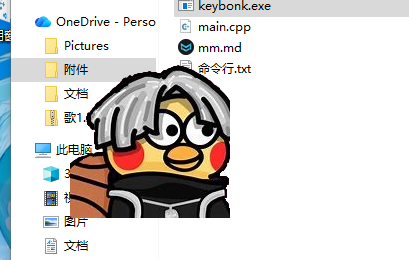
The window can be freely moved
This is the background image we’ll use. You can also use your own, but note that my length and width information is hard-coded in the code. If you change the background image, you need to adjust according to the actual size (later note: it seems the version in the article can freely adjust the window size, but I haven’t tested it)

0. Before Starting
This article was inspired by the blog post Win32窗口设置为透明 - 百足coder - 博客园, but there seem to be some errors in the original article, so I conducted research and made modifications accordingly
Let’s first understand some basic terms
- alpha value: transparency, transparent pixels use alpha values to describe their transparency.
- alpha blending: the process of calculating the final color of two overlapping pixels with transparency information using a formula
- bitmap: an image arranged pixel by pixel, without any compression, where each pixel has its own independent RGB or ARGB representation
1. Creating a Borderless Window
To write such a program, we first need a borderless window, so the first step is to create and display a borderless window
1.1. Basic Code
First, we create a new file named dev.cpp (all subsequent commands are based on this), and write the following code:
// Note: This is actually code I stole from MSDN, modified through实战 and changed a lot when writing the article
#include <windows.h>

LRESULT CALLBACK WindowProc(HWND hwnd, UINT uMsg, WPARAM wParam, LPARAM lParam)
{
    switch (uMsg)
    {
    case WM_PAINT:
    {
        PAINTSTRUCT ps;
        HDC hdc = BeginPaint(hwnd, &ps);
        FillRect(hdc, &ps.rcPaint, (HBRUSH) (COLOR_WINDOW+1));
        EndPaint(hwnd, &ps);
        break;
    }
    case WM_DESTROY:
        PostQuitMessage(0);
        break;
    default:
        return DefWindowProcW(hwnd, uMsg, wParam, lParam);
    }
    return 0;
}

int WINAPI wWinMain(HINSTANCE hInstance, [[maybe_unused]] HINSTANCE hPrevInstance, [[maybe_unused]] PWSTR pCmdLine, int nCmdShow)
{
    const wchar_t CLASS_NAME[] = L"KeyBonk主窗口";
    WNDCLASSEX wc = {};             // Initialize the entire WindowClass with 0
    wc.cbSize = sizeof(WNDCLASSEX); // Set the structure size
    wc.lpfnWndProc = WindowProc;    // Specify the WindowProc function
    wc.hInstance = hInstance;
    wc.lpszClassName = CLASS_NAME; // Window class name
    RegisterClassEx(&wc);
    HWND hwnd = CreateWindowExW(
        WS_EX_TOPMOST | WS_EX_TOOLWINDOW, // Set topmost, hide software icon
        CLASS_NAME,                                       // Window class
        L"KeyBonk主窗口",                                 // Window text
        WS_POPUP | WS_VISIBLE | WS_CLIPCHILDREN,          // Window style
                                                          // Size + position
        CW_USEDEFAULT, CW_USEDEFAULT, 160, 180,
        NULL,      // Parent window
        NULL,      // Menu
        hInstance, // Instance handle
        NULL       // Attached software data
    );

    ShowWindow(hwnd,nCmdShow);

    // Message loop
    MSG msg = {};
    while (GetMessage(&msg, NULL, 0, 0) > 0)
    {
        TranslateMessage(&msg);
        DispatchMessage(&msg);
    }
    return 0;
}
After saving, compile it using the command g++ -o keybonk.exe dev.cpp -mwindows -municode in the command line
The running effect is probably like this:
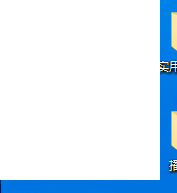
This is a pure white window without borders, and our code was successful
Since our window doesn’t have any close options, we can only close it using the command taskkill /im keybonk.exe in the command line. We’ll use this method to close it later (you can also use Alt(+Fn)+F4). In actual projects, a close option is added to the right-click menu, but this is not the focus of this article so it won’t be discussed.
1.2. Discussion on Window Classes
You may notice that we used WNDCLASSEX instead of WNDCLASS here. In fact, you can completely omit the EX in our example; I just copied it from my KeyBonk project (the original project needs to use EX-specific members)
Note that when using WNDCLASSEX, you must write the following line:
wc.cbSize = sizeof(WNDCLASSEX); // Set the structure size
Otherwise, Windows won’t be able to determine which version of the window class you’re using
1.3. Window Styles
To implement such a window, we need these window styles: WS_POPUP | WS_VISIBLE | WS_CLIPCHILDREN, WS_EX_TOPMOST | WS_EX_TOOLWINDOW. The first three are general window styles, and the last two are extended window styles, meaning respectively: popup window, visible, clip child windows (for optimization), topmost, tool window (hide taskbar icon)
A popup window is a pop-up window without a title bar or border, as opposed to an overlapped window (WS_OVERLAPPED)
2. Detail Optimization
2.1. Making the Window Draggable
Now we have a borderless window, but we can’t move it with the mouse because the system only recognizes dragging from the border as an intention to move the window. We need to apply some tricks.
Add this code to the message processing:
    case WM_NCHITTEST:
    {
        return HTCAPTION;
    }
This code handles the WM_NCHITTEST message, whose full name should be “Window Message - Non-Client Hit Test” (Window Message_Non-Client Area Click Test). When the mouse moves or clicks, Windows sends this message to the window to ask what area the mouse clicked on.
The purpose of this message is because of the diversity of software design. Many software may not use or not only use the system’s default borders, and may not use the system’s pre-made buttons, but the system doesn’t know what areas the program wants to serve what purpose. Therefore, by design, the system should ask instead of assuming.
Here we return HTCAPTION, telling the system that the mouse clicked on the title bar, so the system will interpret dragging as moving the window.
Note that if your program doesn’t just display images but includes components like buttons, this code will cause the buttons to not respond to clicks. We need to add some position judgment to assist, which is left for readers to implement themselves.
Alternatively, you can use the default message processing to handle this message first, then make judgments, which can convert messages from one part to another:
// Convert title bar messages to client area messages, others unchanged
LRESULT hit = DefWindowProc(hwnd, uMsg, wParam, lParam);
if(hit==HTCAPTION)return HTCLIENT;
return hit;
2.2. Standard Mouse Pointer
The current window has a problem: the mouse hover will show an hourglass (or a rotating circle on some systems). The cause is unknown, but it’s confirmed that intercepting the WM_CREATE message and setting the mouse pointer works:
    case WM_CREATE:
    {
        // Set standard arrow mouse pointer
        SetCursor(LoadCursor(NULL, IDC_ARROW));
    }
	break;
Tip
In later articles, as layered window development progresses, this problem seems to disappear, so this mouse pointer setting operation may not be needed
3. Implementing Irregular Window
What we want is not a square window, but an irregular window with smooth contours. We need some parts of the window to be transparent, so next, we’ll implement such an irregular window
The most convenient and complete solution for creating irregular windows in Windows is to use layered windows. Let’s first understand what layered windows are:
3.1. Layered Window
Traditional windows directly draw to the screen. When another window covers the current window, the current window’s pixels are overwritten, so after the upper window moves away, the current window needs to redraw to ensure normal display. Layered windows are a solution that separates the window from the screen. The so-called layering means treating each window as a separate “layer”, with the window separately controlling a piece of memory and compositing it to the screen when displaying.
Although later Windows introduced DWM (Desktop Window Manager) which achieved similar effects, it is very limited. DWM defaults to treating each window as an opaque texture, even if the window is set with WS_EX_TRANSPARENT or some transparent background, its processing model is still a “rectangular area”, causing irregular windows to not display correctly.
Layered windows are different. Layered windows use UpdateLayeredWindow to draw the window, which actually provides DWM with a complete bitmap with an Alpha channel. DWM treats it as an independent layer with transparency information, not as an opaque rectangle.
Layered windows are widely used in the production of various non-standard windows and are widely used in window animation production. We use layered windows here to make DWM “see transparency as transparency” instead of “seeing transparency as blank”, achieving non-rectangular irregular windows.
3.2. Creating Layered Window
To create a layered window, you need to add WS_EX_LAYERED to the window extended style:
    HWND hwnd = CreateWindowExW(
        WS_EX_LAYERED | WS_EX_TOPMOST | WS_EX_TOOLWINDOW, // Layered window, set topmost, hide software icon
        // .......
    );
After adding this window style, the system will treat our window as a layered window
4. Drawing Image
After setting the window as a layered window, we need to set its background. As mentioned earlier, layered windows use UpdateLayeredWindow to draw the window. This function provides the system with a bitmap with an Alpha channel (i.e., with transparency information), and the system will understand this bitmap as our finished window
Although it seems we need to know how to read png and other files into memory and convert them to bitmaps, we don’t need to think about that much yet. The priority is to understand the usage of UpdateLayeredWindow, and after mastering the usage, we can think about bitmap solutions
Note
Below we will assume that we have read the bitmap and stored the handle in an HBITMAP
The prototype of the UpdateLayeredWindow function is as follows:
BOOL UpdateLayeredWindow(
  [in]           HWND          hWnd,
  [in, optional] HDC           hdcDst,
  [in, optional] POINT         *pptDst,
  [in, optional] SIZE          *psize,
  [in, optional] HDC           hdcSrc,
  [in, optional] POINT         *pptSrc,
  [in]           COLORREF      crKey,
  [in, optional] BLENDFUNCTION *pblend,
  [in]           DWORD         dwFlags
);
The function requires us to provide nine parameters, which are: window handle, screen DC, updated window position, updated window size, memory DC, position in DC, color key, overall transparency, and transparent mode flag
4.1. What is Screen DC/Device DC
In Windows, applications usually don’t directly access hardware. To achieve device independence, simplify development, Windows provides a layered driver model and abstract programming interface. In terms of graphics processing, a key design is the Device Context (DC). Applications perform drawing operations through DC, and the Windows graphics subsystem (such as GDI) cooperates with the corresponding device driver to convert these general commands into instructions for specific display or printing devices.
Tip
The term “context” seems a bit difficult to understand. For detailed content about context, you can refer to 知乎 | 计算机编程中的上下文(Context)到底是什么?从理解到实践
DC can be roughly divided into two categories: screen DC and memory DC
Screen DC is a device context associated with the display device. Each window gets or uses a screen DC when it needs to draw, which directly controls the actual display content. But if every drawing operation immediately updates to the screen DC, it will cause frequent window refreshes, which can easily cause visual flicker.
Memory DC is an off-screen device context that is not directly used for display. We can first complete all drawing operations in the memory DC to generate a complete image, then copy it to the screen DC at once. This concentrates the results of multiple drawing operations, effectively avoiding flicker problems.
However, for special windows that support advanced visual effects (such as transparency, shadows, non-rectangular areas) like layered windows, the purpose of using DC is not just to prevent flicker. The drawing of layered windows often involves complex compositing operations, with pixel data and Alpha channels uniformly managed by DWM.
In such scenarios, using the DC mechanism is more based on the following systematic advantages:
Parameter encapsulation and state unification: DC internally encapsulates all states of the current drawing environment (such as brushes, pens, fonts, coordinate mapping, etc.), avoiding repeated passing of a large number of parameters in each drawing call, and ensuring that a series of drawing operations are executed in a consistent context.
Centralized resource management and efficiency optimization: DC can associate and manage graphic resources such as bitmaps, regions, and paths, and optimize them at the device driver level. For layered windows, the system can more efficiently cache and composite bitmaps through DC, reducing repeated rendering overhead.
Improved overall performance and responsiveness: By integrating multiple discrete drawing commands into a batch operation in DC, the number of context switches between user mode and kernel mode drivers is reduced, thereby lowering CPU usage, improving the overall throughput of drawing, and enhancing interface responsiveness.
Therefore, DC is not only a flicker prevention tool in the Windows graphics system, but also an important infrastructure that carries device abstraction, state management, and drawing optimization. These design advantages of DC are particularly crucial in advanced interface technologies such as layered windows.
In actual code, we use GetDC(hwnd); to obtain the screen DC of the corresponding window, and then use CreateCompatibleDC(hdcScreen); to create a memory DC based on the screen DC, as shown below:
    // Create memory DC
    HDC hdcScreen = GetDC(hwnd);
    HDC memDC = CreateCompatibleDC(hdcScreen);
Note that DC needs to be manually released:
    DeleteDC(memDC);
    ReleaseDC(hwnd, hdcScreen);
4.2. Color Key and Transparency
Color key is an earlier transparency technology that sets a specific color in the window as transparent and creates transparent areas by drawing that color. This method is not used in this document, just for understanding. When used, the transparent color is usually specified in the form of RGB(0, 255, 0).
When using UpdateLayeredWindow to set the overall transparency of the window, you need to specify a BLENDFUNCTION structure through the second-to-last parameter, which is defined as follows:
typedef struct _BLENDFUNCTION {
    BYTE BlendOp;             // Must be set to AC_SRC_OVER (0x00)
    BYTE BlendFlags;          // Must be set to 0
    BYTE SourceConstantAlpha; // Overall transparency, range 0–255
    BYTE AlphaFormat;         // Alpha format flag
} BLENDFUNCTION;
The first two fields are fixed values, and the last two fields are specified by the user:
SourceConstantAlpha specifies an Alpha constant value (0-255) for the entire source bitmap. This value is combined with the pixel data of the source bitmap, with specific behavior depending on AlphaFormat:
- When
AlphaFormatis 0, it indicates the bitmap has no Alpha channel, and this value directly serves as the uniform transparency for the entire bitmap. - When
AlphaFormatisAC_SRC_ALPHA, it means the bitmap has per-pixel Alpha, and this value will be used as a scaling factor, multiplied by each pixel’s own Alpha value to determine the final transparency. The formula is: Result Alpha = Source Pixel Alpha × (SCA/255)
4.3. Flag Bits
The last parameter of UpdateLayeredWindow is a flag bit, which according to the official documentation can be one of the following values:
| Macro Name | Value | Meaning |
|---|---|---|
| ULW_ALPHA | 0x00000002 | Use pblend as the blending function. If the display mode is 256 colors or less, this value has the same effect as ULW_OPAQUE. |
| ULW_COLORKEY | 0x00000001 | Use crKey as the transparency color key. |
| ULW_OPAQUE | 0x00000004 | Draw an opaque layered window. |
| ULW_EX_NORESIZE | 0x00000008 | If the current window size does not match the size specified in psize, force the UpdateLayeredWindowIndirect function to fail. |
We use ULW_ALPHA for creating irregular windows
4.4. Reviewing Parameters
Now that we’ve learned the above content, let’s review the UpdateLayeredWindow function prototype above to master the drawing method of layered windows:
BOOL UpdateLayeredWindow(
  [in]           HWND          hWnd,
  [in, optional] HDC           hdcDst,
  [in, optional] POINT         *pptDst,
  [in, optional] SIZE          *psize,
  [in, optional] HDC           hdcSrc,
  [in, optional] POINT         *pptSrc,
  [in]           COLORREF      crKey,
  [in, optional] BLENDFUNCTION *pblend,
  [in]           DWORD         dwFlags
);hWndspecifies the window handle of the layered window to be drawnhdcDstspecifies the screen DC (if NULL, the memory DC must also be NULL)pptDstspecifies the window position, if NULL, the window position remains unchangedpsizespecifies the window size, can be NULL when the window size is not updated, ifhdcSrcis NULL,psizemust be NULL.hdcSrcspecifies the memory DCpptSrcspecifies the position in the DC, meaning to tell the system from which position in the DC the real window display range startscrKeyspecifies the transparent color keypblendspecifies the overall transparencydwFlagsflags the transparent mode
We call it like this:
    // Use UpdateLayeredWindow
    POINT ptSrc = {0, 0};
    BLENDFUNCTION bf = {AC_SRC_OVER, 0, 255, AC_SRC_ALPHA};
    UpdateLayeredWindow(hwnd, hdcScreen, NULL, &size, memDC, &ptSrc, 0, &bf, ULW_ALPHA);
UpdateLayeredWindow updates the display for layered windows, and we don’t need functions like ShowWindow and UpdateWindows to update the display at this time, so we can directly delete them
4.5. DC Operations
We talked about the use of UpdateLayeredWindow above. Drawing windows requires the use of DC, but we didn’t expand on DC-related content just now. Here we will expand in detail
In Windows, the drawing of layered windows is based on bitmaps. We need to associate the bitmap with the window, and DC is the bridge to achieve this association. Through the “select” operation, such as the SelectObject function, we link the bitmap with the DC, and then call UpdateLayeredWindow to draw.
So why design a function to select data instead of directly storing the bitmap in the DC as a structure? This is because the early Win32 API was developed in C language, which lacks object-oriented encapsulation features. For this reason, Windows introduced HDC (Device Context Handle) as an abstraction layer: we cannot directly operate the inside of DC, but can only indirectly operate it through predefined GDI functions:
HBITMAP hOldBmp = (HBITMAP)SelectObject(memDC, hBmp);You can understand this operation through object-oriented thinking. We understand DC as a class, memDC as an object, and SelectObject as a method. We can modify the private members of the class in a restricted way through this method
Note that each time a new bitmap is selected, the previous bitmap is deselected. If the deselected one is a custom bitmap, you need to decide whether to release or reuse it later; if it’s a default bitmap, you must restore it before releasing the DC, because GDI can only correctly handle the release of DCs that contain default bitmaps. If the DC still has a custom bitmap selected, it will cause memory leaks.
Note
Regarding custom bitmaps, the reason why DC cannot correctly release them after selection is because bitmaps may be used by multiple DCs at the same time, and GDI cannot guarantee that this bitmap is releasable, so it won’t release it. We can’t directly ask DC to deselect the current bitmap without selecting a new one, because DC requires that it must contain a bitmap, so we can only restore it with the default bitmap. The default bitmap, as a GDI internal resource, can be correctly released because GDI knows this operation is safe
If our bitmap is HBITMAP hBmp; and the memory DC is HDC memDC;, then we select the bitmap like this:
	// Select bitmap
    HBITMAP hOldBmp = (HBITMAP)SelectObject(memDC, hBmp);
As mentioned earlier, GDI can only correctly release DCs with default bitmaps selected. When releasing resources, we also need to restore the DC to the default bitmap:
    SelectObject(memDC, hOldBmp);// Deselect custom bitmap
	// At this point, the bitmap state is "deselected" and can be deleted
    DeleteDC(memDC);// Delete memory DC
    ReleaseDC(hwnd, hdcScreen);// Release screen DC
    DeleteObject(hBmp);// Delete bitmap
4.6. Getting Image Size
As mentioned earlier, UpdateLayeredWindow needs a size information as the window size. Since our layered window only displays our image, the size is naturally the bitmap size, so we need to get the image size as the window size
HBITMAP is a GDI object handle, which is just a string of numbers. It can only specify the bitmap to be operated in GDI functions, but it doesn’t contain any information itself. We need to convert it to a BITMAP structure to read its contained data:
    // Get image size
    BITMAP bm;
    GetObject(hBmp, sizeof(BITMAP), &bm);
    SIZE size = {bm.bmWidth, bm.bmHeight};
GDI uses GetObject to convert handles to actual objects for data reading and other operations
4.7. Combined Code
    // Create memory DC
    HDC hdcScreen = GetDC(hwnd);
    HDC memDC = CreateCompatibleDC(hdcScreen);
	// Select bitmap
    HBITMAP hOldBmp = (HBITMAP)SelectObject(memDC, hBmp);

    // Get image size
    BITMAP bm;
    GetObject(hBmp, sizeof(BITMAP), &bm);
    SIZE size = {bm.bmWidth, bm.bmHeight};

    // Use UpdateLayeredWindow
    POINT ptSrc = {0, 0};
    BLENDFUNCTION bf = {AC_SRC_OVER, 0, 255, AC_SRC_ALPHA};
    UpdateLayeredWindow(hwnd, hdcScreen, NULL, &size, memDC, &ptSrc, 0, &bf, ULW_ALPHA);

    // Cleanup
    SelectObject(memDC, hOldBmp);
    DeleteDC(memDC);
    ReleaseDC(hwnd, hdcScreen);
    DeleteObject(hBmp);
5. Reading Image
We’ve learned how to draw layered windows, but drawing layered windows requires bitmaps, and we don’t have the code to read images yet, so we need to write the image reading code first, and then truly write the window drawing code.
For convenience, we use GDI+ for image reading here. This library is自带可链接的 on general Windows compilers. If you don’t want to use GDI+, you can also find other methods
To use GDI+, you first need to initialize it:
int WINAPI wWinMain(HINSTANCE hInstance, [[maybe_unused]] HINSTANCE hPrevInstance, [[maybe_unused]] PWSTR pCmdLine, int nCmdShow)
{
    // Initialize GDI+
    Gdiplus::GdiplusStartupInput gdiplusStartupInput;
    ULONG_PTR gdiplusToken;
    Gdiplus::GdiplusStartup(&gdiplusToken, &gdiplusStartupInput, NULL);

	// The following content is omitted......
}
Note
GDI+ development requires including the corresponding header file:
#include <gdiplus.h>At the same time, you need to link the GDI+ library during compilation. For g++, just add -lgdiplus
g++ -o keybonk.exe dev.cpp -lgdiplus -mwindows -municodeNow that it’s initialized, don’t forget to add the de-initialization statement after the program’s message loop and before the return statement:
    // Close GDI library when program ends
    Gdiplus::GdiplusShutdown(gdiplusToken);
Now let’s read the image. GDI supports reading bitmaps from various format files using the Gdiplus::Bitmap::FromFile function:
    // Load PNG (preserve alpha value)
    Gdiplus::Bitmap *pBitmap = Gdiplus::Bitmap::FromFile(L"!!!File path!!!");
    if (!pBitmap || pBitmap->GetLastStatus() != Gdiplus::GpStatus::Ok)
    {
        // Image loading failed, create red rectangle as alternative
        pBitmap = new Gdiplus::Bitmap(160, 180);
        Gdiplus::Graphics g(pBitmap);
        Gdiplus::SolidBrush brush(Gdiplus::Color(255, 255, 0, 0));
        g.FillRectangle(&brush, 0, 0, 160, 180);
    }
Note
The file path in the code needs to be changed by yourself. Note that if you use \, you need to write \\ to escape
Here we first use Gdiplus::Bitmap::FromFile to read our file, using a pointer pBitmap to point to the location of the loaded file in memory. We also need to arrange error handling. If file reading fails, we need to try to manually draw a red rectangle interface to remind the user that reading failed.
We loaded the image into pBitmap, but its type is Gdiplus::Bitmap, while the bitmap needed by the screen DC is HBITMAP. We need to find a way to convert it. Gdiplus::Bitmap as a class provides the GetHBITMAP method:
    HBITMAP hBmp;
    pBitmap->GetHBITMAP(Gdiplus::Color(0, 0, 0, 0), &hBmp); // Transparent background
The GetHBITMAP method requires two parameters, the former is the background color, and the latter is the storage location of the result. We use Gdiplus::Color(0, 0, 0, 0) to get a color value, which is in ARGB (alpha-RGB) format, with the first bit specifying transparency, 0 for transparent, thus preserving the transparent background of the original image
When we finish reading, pBitmap will no longer be used, and we need to release it:
delete pBitmap;Complete Example
The following is the complete C++ code, which can be compiled using the command g++ -o main.exe main.cpp -lgdiplus -lgdi32 -mwindows -municode.
Before using it, you need to change the “!!!File path!!!” position (probably line 55) to your own background image file path, otherwise it will start with a pure red state.
Important
If you use a custom image as the background, be sure to note that the size should not be too large. If you must use it, please replace it with the more intelligent version
#include <windows.h>
#include <gdiplus.h>

LRESULT CALLBACK WindowProc(HWND hwnd, UINT uMsg, WPARAM wParam, LPARAM lParam)
{
    switch (uMsg)
    {
    case WM_NCHITTEST:
    {
        return HTCAPTION;
    }
    case WM_CREATE:
    {
        // Set standard arrow mouse pointer
        SetCursor(LoadCursor(NULL, IDC_ARROW));
    }
    break;
    case WM_DESTROY:
        PostQuitMessage(0);
        break;
    default:
        return DefWindowProcW(hwnd, uMsg, wParam, lParam);
    }
    return 0;
}

int WINAPI wWinMain(HINSTANCE hInstance, [[maybe_unused]] HINSTANCE hPrevInstance, [[maybe_unused]] PWSTR pCmdLine, [[maybe_unused]] int nCmdShow)
{
    // Initialize GDI+
    Gdiplus::GdiplusStartupInput gdiplusStartupInput;
    ULONG_PTR gdiplusToken;
    Gdiplus::GdiplusStartup(&gdiplusToken, &gdiplusStartupInput, NULL);

    const wchar_t CLASS_NAME[] = L"KeyBonk主窗口";
    WNDCLASSEX wc = {};             // Initialize the entire WindowClass with 0
    wc.cbSize = sizeof(WNDCLASSEX); // Set the structure size
    wc.lpfnWndProc = WindowProc;    // Specify the WindowProc function
    wc.hInstance = hInstance;
    wc.lpszClassName = CLASS_NAME; // Window class name
    RegisterClassEx(&wc);
    HWND hwnd = CreateWindowExW(
        WS_EX_LAYERED | WS_EX_TOPMOST | WS_EX_TOOLWINDOW, // Layered window, set topmost, hide software icon
        CLASS_NAME,                                       // Window class
        L"KeyBonk主窗口",                                 // Window text
        WS_POPUP | WS_VISIBLE | WS_CLIPCHILDREN,          // Window style
                                                          // Size + position
        CW_USEDEFAULT, CW_USEDEFAULT, 160, 180,
        NULL,      // Parent window
        NULL,      // Menu
        hInstance, // Example handle
        NULL       // Attached software data
    );

    // Load PNG (preserve alpha value)
    Gdiplus::Bitmap *pBitmap = Gdiplus::Bitmap::FromFile(L"!!!File path!!!");
    if (!pBitmap || pBitmap->GetLastStatus() != Gdiplus::GpStatus::Ok)
    {
        // Image loading failed, create red rectangle as alternative
        pBitmap = new Gdiplus::Bitmap(160, 180);
        Gdiplus::Graphics g(pBitmap);
        Gdiplus::SolidBrush brush(Gdiplus::Color(255, 255, 0, 0));
        g.FillRectangle(&brush, 0, 0, 160, 180);
    }

    HBITMAP hBmp;
    pBitmap->Gdiplus::Bitmap::GetHBITMAP(Gdiplus::Color(0, 0, 0, 0), &hBmp); // Transparent background

    // Create memory DC
    HDC hdcScreen = GetDC(hwnd);
    HDC memDC = CreateCompatibleDC(hdcScreen);
    HBITMAP hOldBmp = (HBITMAP)SelectObject(memDC, hBmp);

    // Get image size
    BITMAP bm;
    GetObject(hBmp, sizeof(BITMAP), &bm);
    SIZE size = {bm.bmWidth, bm.bmHeight};

    // Use UpdateLayeredWindow
    POINT ptSrc = {0, 0};
    BLENDFUNCTION bf = {AC_SRC_OVER, 0, 255, AC_SRC_ALPHA};
    UpdateLayeredWindow(hwnd, hdcScreen, NULL, &size, memDC, &ptSrc, 0, &bf, ULW_ALPHA);

    // Cleanup
    SelectObject(memDC, hOldBmp);
    DeleteDC(memDC);
    ReleaseDC(hwnd, hdcScreen);
    delete pBitmap;
    DeleteObject(hBmp);

    // Message loop
    MSG msg = {};
    while (GetMessage(&msg, NULL, 0, 0) > 0)
    {
        TranslateMessage(&msg);
        DispatchMessage(&msg);
    }

    // Close GDI library when program ends
    Gdiplus::GdiplusShutdown(gdiplusToken);

    return 0;
}
Overall Summary
(No content yet)
More Intelligent Version
Here’s a more intelligent version that checks the screen size to scale the window
#include <windows.h>
#include <gdiplus.h>
#include <algorithm>  // Add this header file

LRESULT CALLBACK WindowProc(HWND hwnd, UINT uMsg, WPARAM wParam, LPARAM lParam)
{
    switch (uMsg)
    {
    case WM_NCHITTEST:
    {
        return HTCAPTION;
    }
    case WM_DESTROY:
        PostQuitMessage(0);
        break;
    default:
        return DefWindowProcW(hwnd, uMsg, wParam, lParam);
    }
    return 0;
}

int WINAPI wWinMain(HINSTANCE hInstance, [[maybe_unused]] HINSTANCE hPrevInstance, [[maybe_unused]] PWSTR pCmdLine, [[maybe_unused]]int nCmdShow)
{
    // Initialize GDI+
    Gdiplus::GdiplusStartupInput gdiplusStartupInput;
    ULONG_PTR gdiplusToken;
    Gdiplus::GdiplusStartup(&gdiplusToken, &gdiplusStartupInput, NULL);

    const wchar_t CLASS_NAME[] = L"KeyBonk主窗口";
    WNDCLASSEX wc = {};
    wc.cbSize = sizeof(WNDCLASSEX);
    wc.lpfnWndProc = WindowProc;
    wc.hInstance = hInstance;
    wc.lpszClassName = CLASS_NAME;
    RegisterClassEx(&wc);

    HWND hwnd = CreateWindowExW(
        WS_EX_LAYERED | WS_EX_TOPMOST | WS_EX_TOOLWINDOW,
        CLASS_NAME,
        L"KeyBonk主窗口",
        WS_POPUP | WS_VISIBLE | WS_CLIPCHILDREN,
        CW_USEDEFAULT, CW_USEDEFAULT, 160, 180,
        NULL, NULL, hInstance, NULL
    );

    // Load PNG
    Gdiplus::Bitmap *pBitmap = Gdiplus::Bitmap::FromFile(L"C:\\Users\\Administrator\\Desktop\\透明窗口\\a.png");
    if (!pBitmap || pBitmap->GetLastStatus() != Gdiplus::GpStatus::Ok)
    {
        // Image loading failed, create red rectangle as alternative
        pBitmap = new Gdiplus::Bitmap(160, 180);
        Gdiplus::Graphics g(pBitmap);
        Gdiplus::SolidBrush brush(Gdiplus::Color(255, 255, 0, 0));
        g.FillRectangle(&brush, 0, 0, 160, 180);
    }

    // Get original bitmap size
    int originalWidth = pBitmap->GetWidth();
    int originalHeight = pBitmap->GetHeight();

    // Get screen size
    int screenWidth = GetSystemMetrics(SM_CXSCREEN);
    int screenHeight = GetSystemMetrics(SM_CYSCREEN);

    // Calculate maximum allowed size
    int maxWidth = screenWidth / 4;    // One quarter of screen width
    int maxHeight = screenHeight / 2;  // Half of screen height

    // Calculate scale ratio
    float widthRatio = (float)originalWidth / maxWidth;
    float heightRatio = (float)originalHeight / maxHeight;
    float scaleRatio = std::max(widthRatio, heightRatio);

    // Calculate scaled size
    int scaledWidth, scaledHeight;
    if (scaleRatio > 1.0f)
    {
        // Need to scale
        scaledWidth = (int)(originalWidth / scaleRatio);
        scaledHeight = (int)(originalHeight / scaleRatio);
    }
    else
    {
        // No need to scale
        scaledWidth = originalWidth;
        scaledHeight = originalHeight;
    }

    // Create scaled bitmap
    Gdiplus::Bitmap* scaledBitmap = new Gdiplus::Bitmap(scaledWidth, scaledHeight);
    Gdiplus::Graphics graphics(scaledBitmap);

    // Set high quality scaling
    graphics.SetInterpolationMode(Gdiplus::InterpolationModeHighQualityBicubic);
    graphics.SetSmoothingMode(Gdiplus::SmoothingModeAntiAlias);
    graphics.SetPixelOffsetMode(Gdiplus::PixelOffsetModeHalf);

    // Draw scaled image
    graphics.DrawImage(pBitmap, 0, 0, scaledWidth, scaledHeight);

    // Cleanup original bitmap
    delete pBitmap;
    pBitmap = scaledBitmap;  // Use scaled bitmap

    // Convert GDI+ bitmap to HBITMAP
    HBITMAP hBmp;
    pBitmap->GetHBITMAP(Gdiplus::Color(0, 0, 0, 0), &hBmp);

    // Create memory DC
    HDC hdcScreen = GetDC(hwnd);
    HDC memDC = CreateCompatibleDC(hdcScreen);
    HBITMAP hOldBmp = (HBITMAP)SelectObject(memDC, hBmp);

    // Use scaled size
    SIZE size = {scaledWidth, scaledHeight};
    POINT ptSrc = {0, 0};
    BLENDFUNCTION bf = {AC_SRC_OVER, 0, 255, AC_SRC_ALPHA};

    // Set window position (optional: move window to center of screen)
    int xPos = (screenWidth - scaledWidth) / 2;
    int yPos = (screenHeight - scaledHeight) / 2;
    SetWindowPos(hwnd, NULL, xPos, yPos, scaledWidth, scaledHeight, SWP_NOZORDER | SWP_NOACTIVATE);

    // Update layered window
    UpdateLayeredWindow(hwnd, hdcScreen, NULL, &size, memDC, &ptSrc, 0, &bf, ULW_ALPHA);

    // Cleanup
    SelectObject(memDC, hOldBmp);
    DeleteDC(memDC);
    ReleaseDC(hwnd, hdcScreen);
    delete pBitmap;
    DeleteObject(hBmp);

    // Message loop
    MSG msg = {};
    while (GetMessage(&msg, NULL, 0, 0) > 0)
    {
        TranslateMessage(&msg);
        DispatchMessage(&msg);
    }

    // Close GDI library when program ends
    Gdiplus::GdiplusShutdown(gdiplusToken);

    return 0;
}